Our current ordering platform allows you to shop across multiple galleries and check out in one transaction.
The most important rule:
Use the same email address for every gallery you access.
This ensures your cart stays synced across galleries on your device.
If you have difficulties please contact us.
Step 1: Add Items from the First Gallery
Open your first gallery using the direct link.
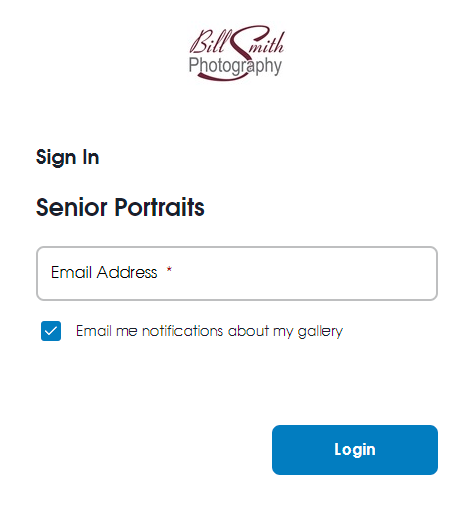
After clicking the link, the following should appear (see image below). Enter your personal email to view and order from this gallery. It is not email specific or linked.
Click "Shop" and then select the product you want to purchase.
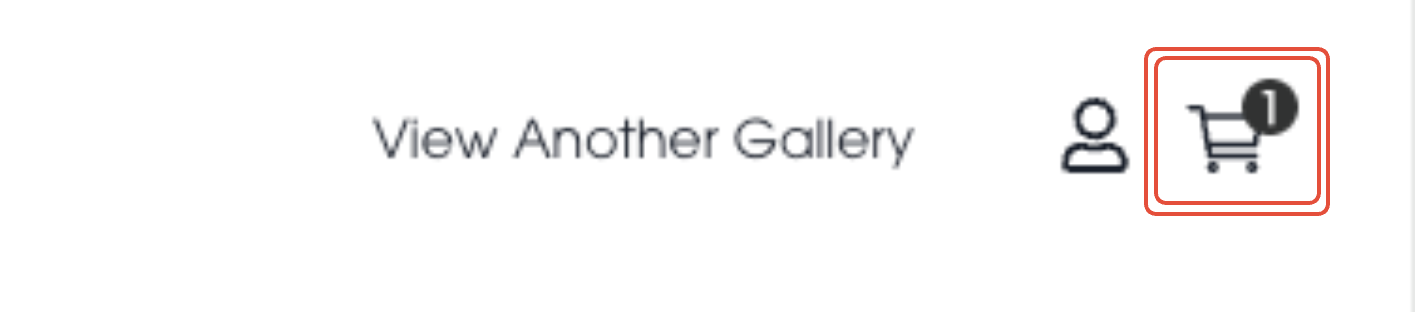
Once you have added a product to your cart in this gallery, you will see a number in your cart (in the top right corner of your webpage).
After this step, you can navigate to the other galleries using either Method A or Method B following.
Make sure that you either have your next link to click OR the online code to search ready. Know that the Online Code is typically the student's Permanent ID number which is typically on their ID Card from Bill Smith Photography.
Step 2 – Add Items from Another Gallery
You have two options:
Method A – Using a Direct Link
Navigate to the Next Gallery
Click the direct link to the next gallery you wish to order from. This will either be in your email or via SMS.
- Enter the Same Email Address
- When prompted, enter the same email address you used for the first gallery.
This ensures your cart syncs across all galleries on your device.
- Confirm your cart number matches
- After entering the gallery, check that your cart number matches the one from the previous gallery.
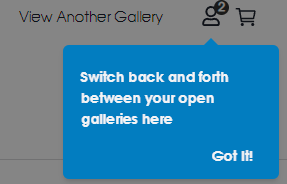
You will also see a notification about swapping between multiple galleries.
- Add Items from the New Gallery
Continue selecting items and adding them to your cart for this gallery.
- Repeat for Additional Galleries
Repeat above steps for each additional gallery you want to order from.
- Review Your Orders
- Before making payment, review all items in your cart.
- Make Changes if Necessary
- To adjust an item, return to the gallery where you originally added it to your cart.
- Complete Your Order
Once satisfied with all selections, proceed to payment.
Method B – Using an Online Code
Access the Next Gallery
Click the "View Another Gallery" option.

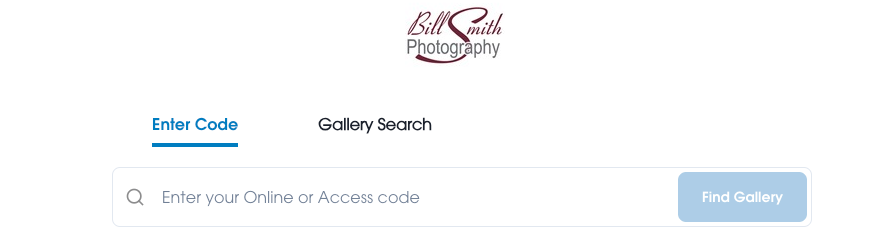
This will take you a search bar.
- Enter the Online Code or Search for a Gallery
- In the "Enter Code" field, type the Online Code for your student/athlete. This is typically their Student ID number.
Alternatively, use the "Gallery Search" feature to type in the school name or event type to check if it was photographed.
Click "VIEW GALLERY" under the correct event. If a gallery has the wording "Expired" on it you can email services@billsmithphoto.com to see if we can activate that gallery for you. Please include the gallery name in your email to help us expedite this process.
- Enter the Same Email Address
- When prompted, enter the same email address you used for the first gallery.
This ensures your cart syncs across all galleries on your device.
- Confirm your cart is synced
- After entering the gallery, check that your cart number matches the one from the previous gallery.
You will also see a notification about swapping between multiple galleries.
- Add Items from the New Gallery
Continue selecting items and adding them to your cart for this gallery.
- Repeat for Additional Galleries
Repeat above steps for each additional gallery you want to order from.
- Review Your Orders
- Before making payment, review all items in your cart.
- Make Changes if Necessary
- To adjust an item, return to the gallery where you originally added it to your cart.
- Complete Your Order
- Once satisfied with all selections, proceed to payment.
Before checkout:
Review your entire cart
Return to the original gallery if edits are needed
Complete payment once all items are correct
If a gallery shows “Expired,” contact us with the gallery name to request reactivation (if available).