Some programs (such as Sport and Fall school portraits) allow multiple background options.
Background selection is completed at the time of ordering. Multi-Background Selection is not available for Pre-Paid orders by paper or online.
Past Method 2 is General Ordering and Cropping & Adjustments (General Reminder). Orders cannot be modified once placed. This include package changes, text changes, background change, or cropping modifications.
Always review your cart before payment to avoid duplicate items.
Method 1 – Standard Product Customization
- Start Your Purchase
- When viewing the gallery online, click "Shop."
- Select the product you want to purchase, then click "Customize & Buy."
- What appears next will depend on the type of product you are ordering.
Refer to the example image provided to see how Digital or Print selections may appear.
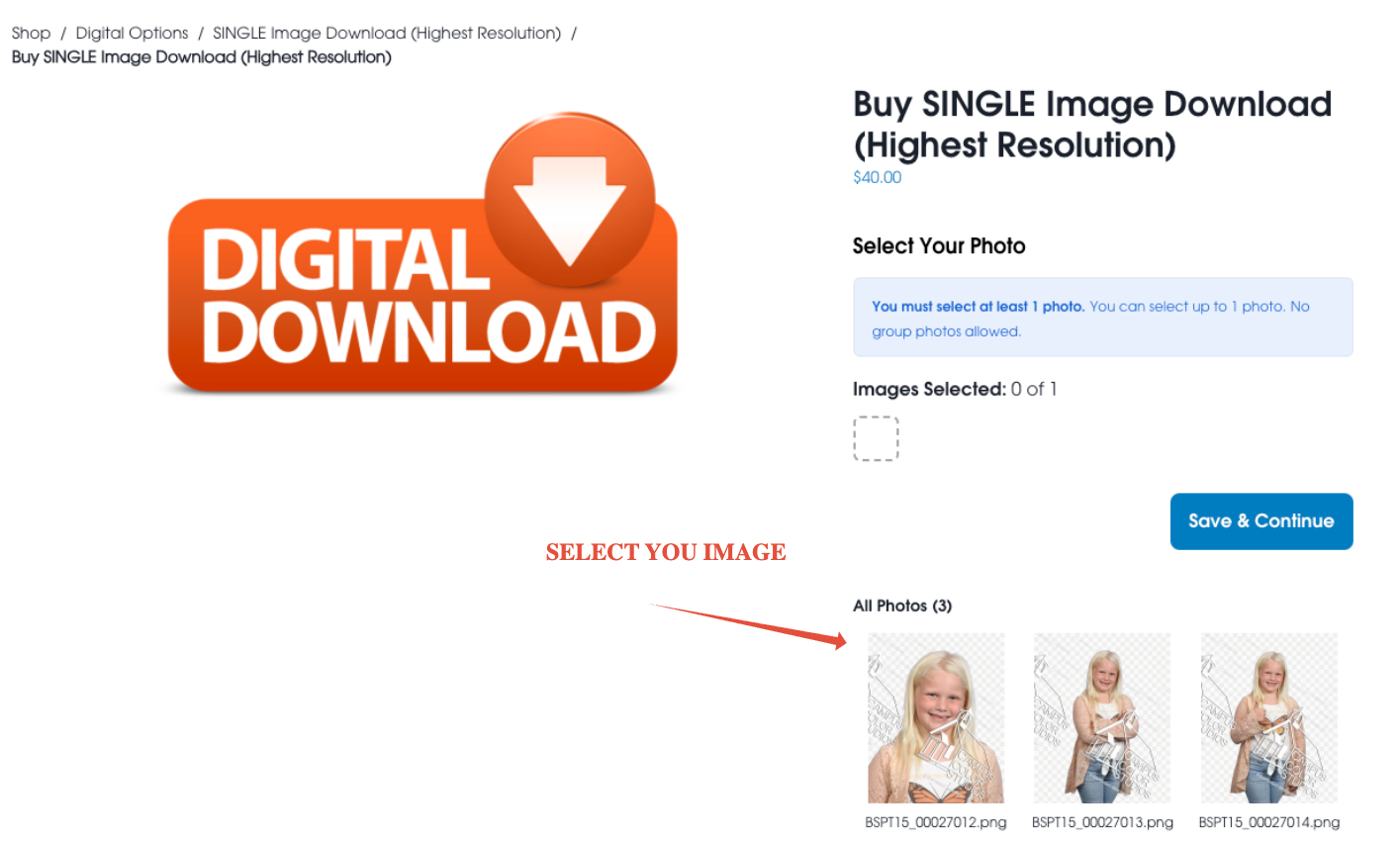
Digital Purchase
Select your pose to see background options. An internal pop-up will appear for you to select the background of your choice.
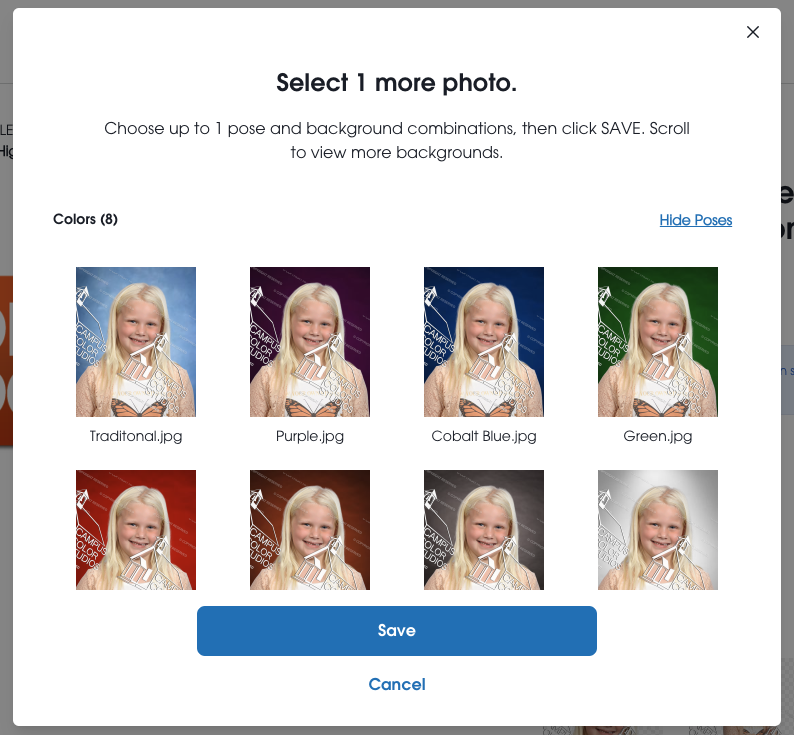
Once you find the background you like click that background and then save. The selected background will be the one that is sent to you.
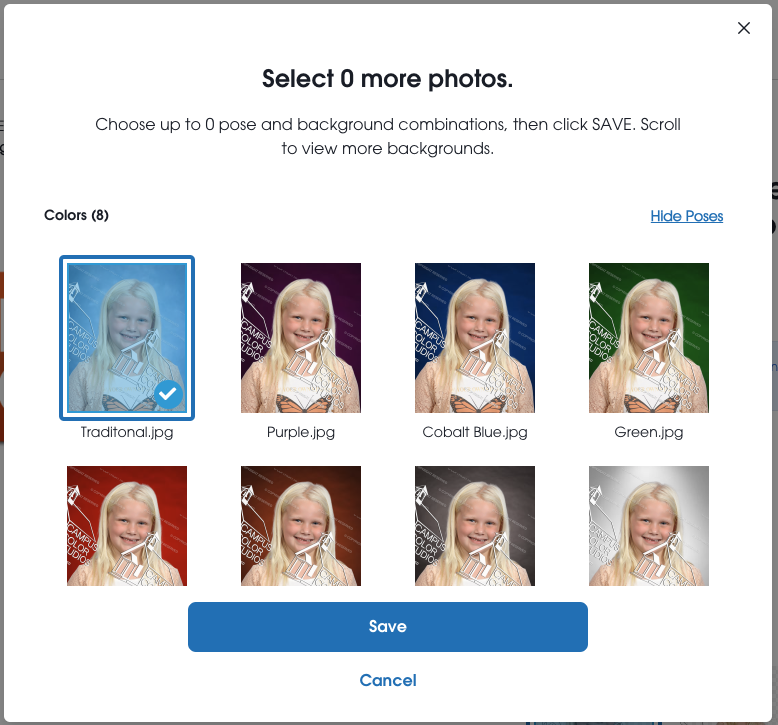
Review your Image Selection!
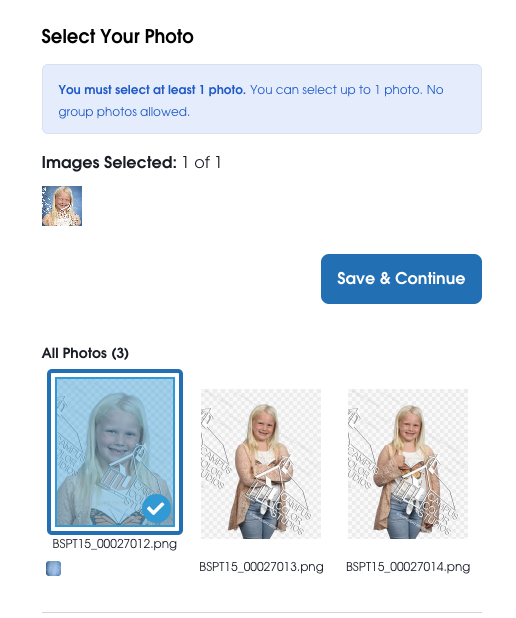
Before finalizing:
Double-check your selected background
Confirm crop positioning
Review your cart
Backgrounds cannot be changed after an order is submitted.
Print Purchase (basic)
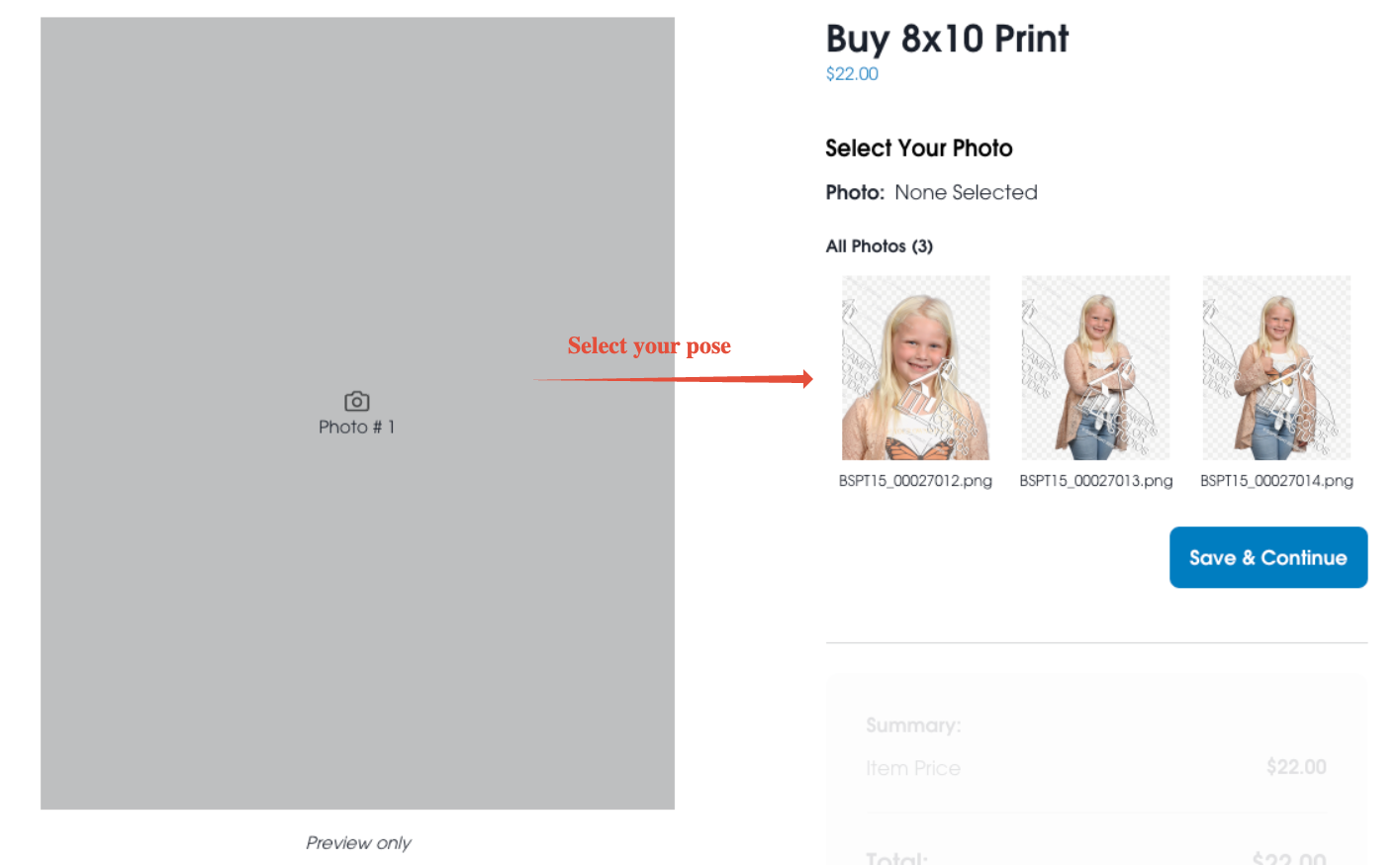
Select Your Image: Click on the image you want to purchase.
Choose Your Background: An internal pop-up will appear. Select the background of your choice for the image.
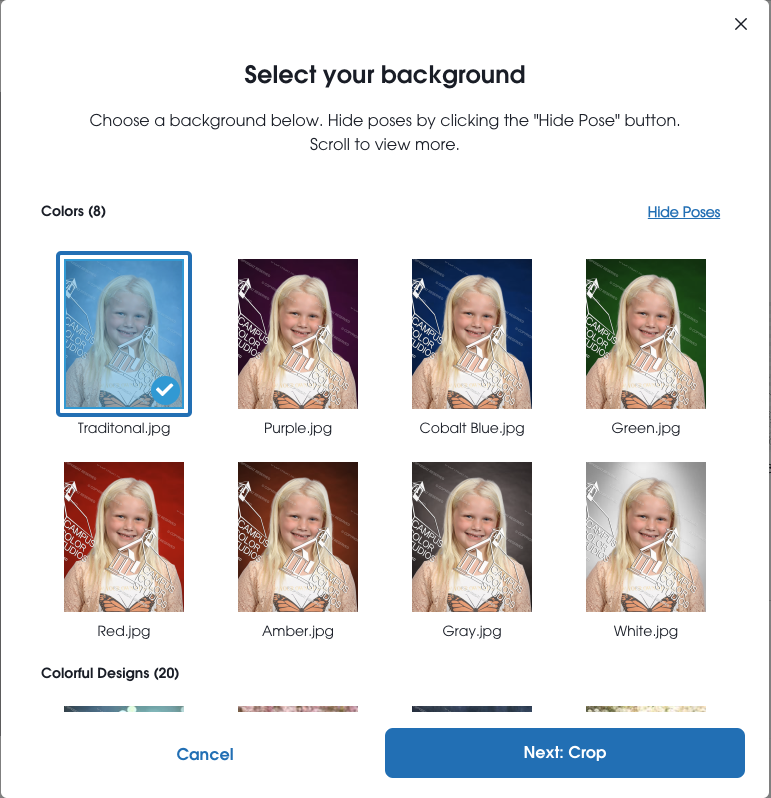
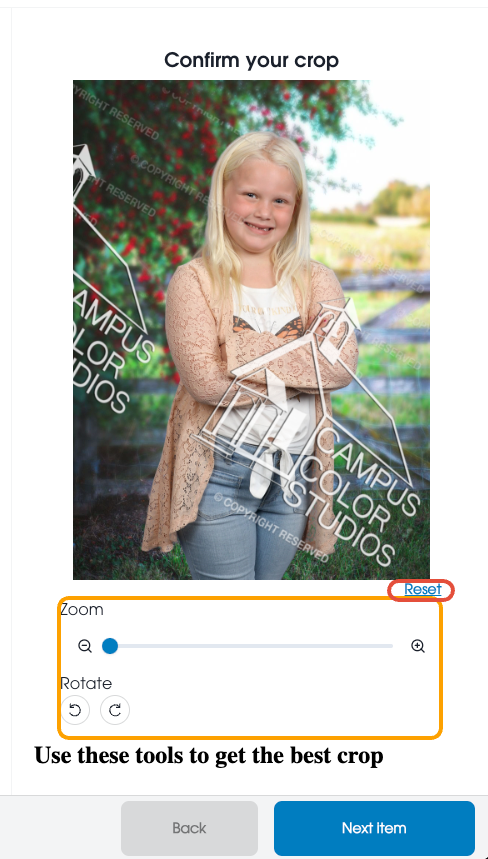
Confirm the Crop: Click "Next: Crop" to adjust and confirm the crop for your printed item.
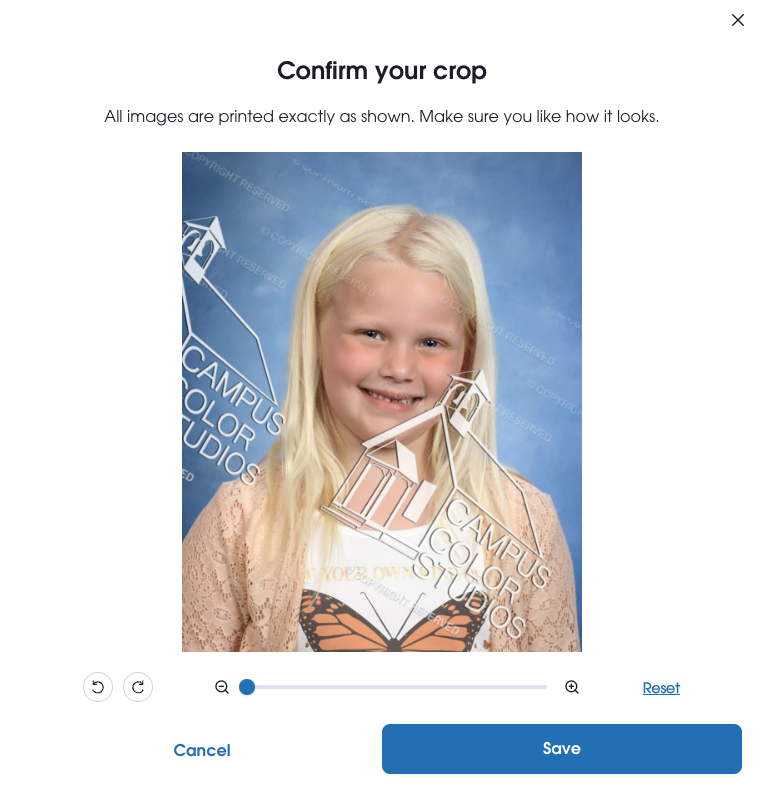
Save Your Selection: Click "Save" to finalize your background and crop selection.
Review your Image:
Double-check your selected pose and background to ensure they are correct.
If you clicked "Buy Photo" under the image in the "My Photos" tab, you can change the background by clicking "Edit"
Method 2: Using Favorites (RECOMMENDED)
- Mark Your Favorite Pose(s)
- In the "My Photos" tab, locate the images/poses you like.
Click the heart icon at the bottom of each image to mark it as a favorite.
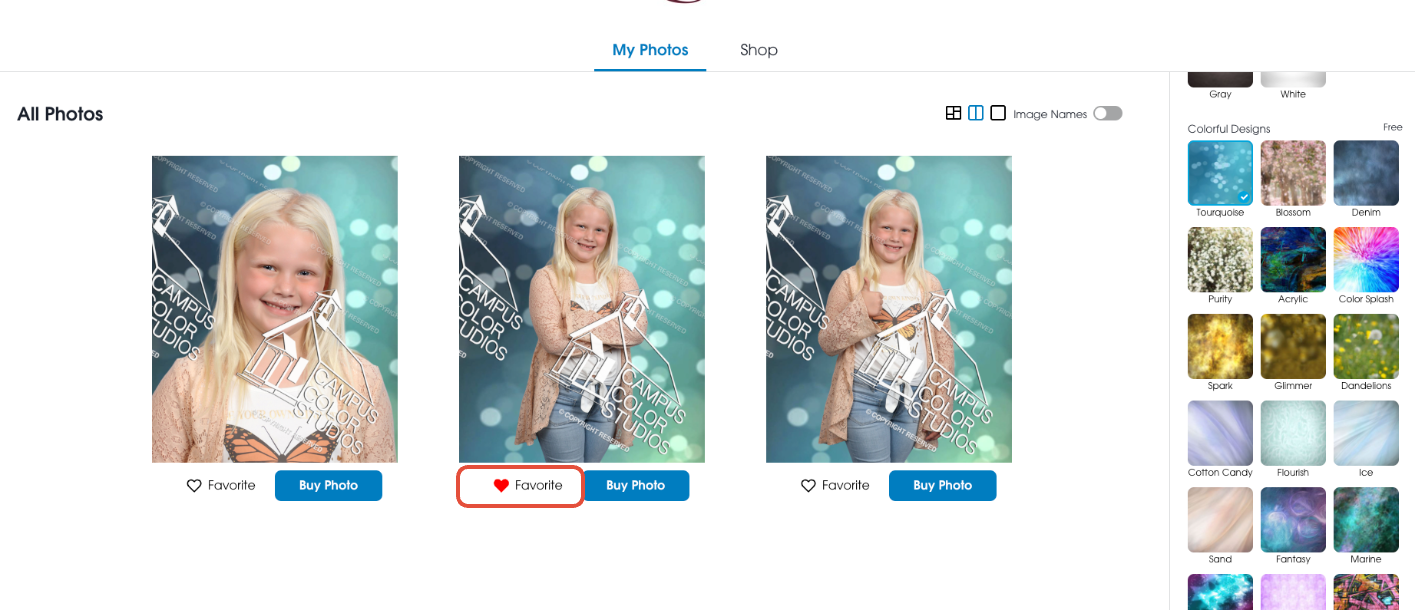
You can select multiple backgrounds for a single pose by repeating this step
- Shop for Products
- Click "Shop" to browse products.
- Find the package or product that best fits your needs and click "Customize & Buy."
- Customize Your Prints
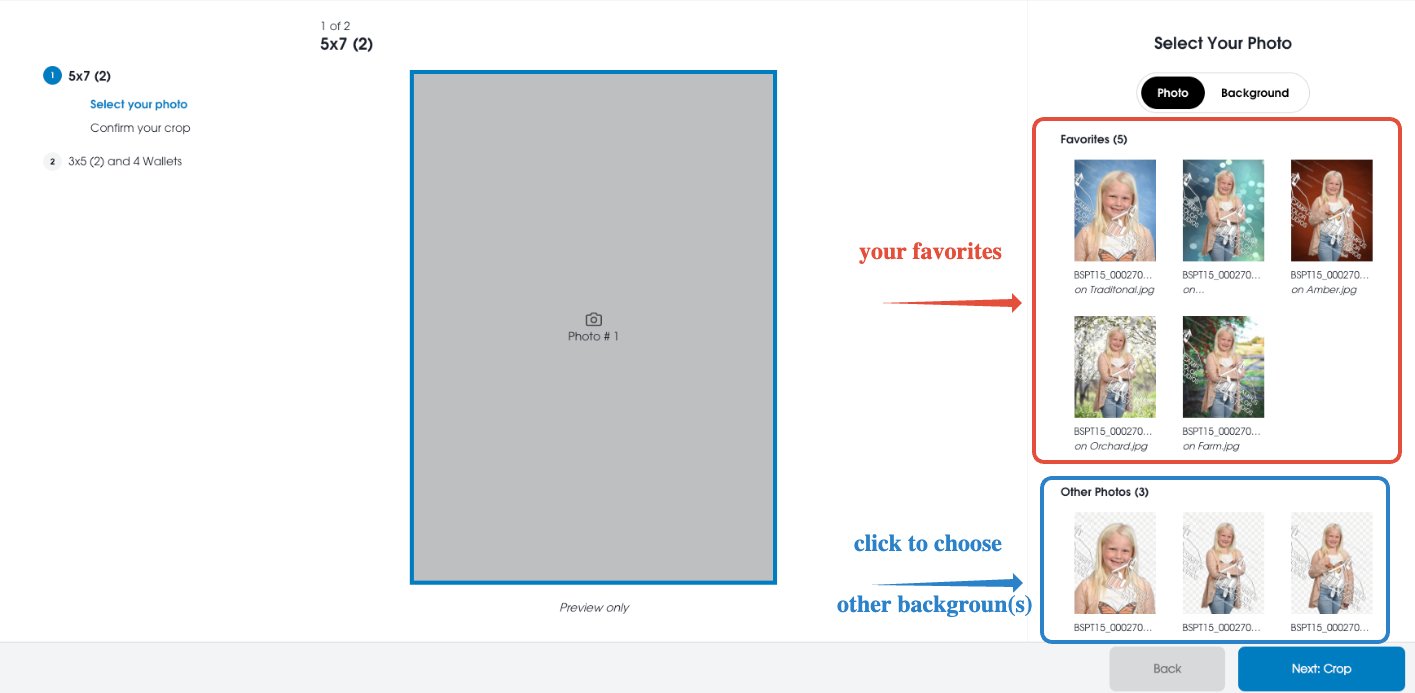
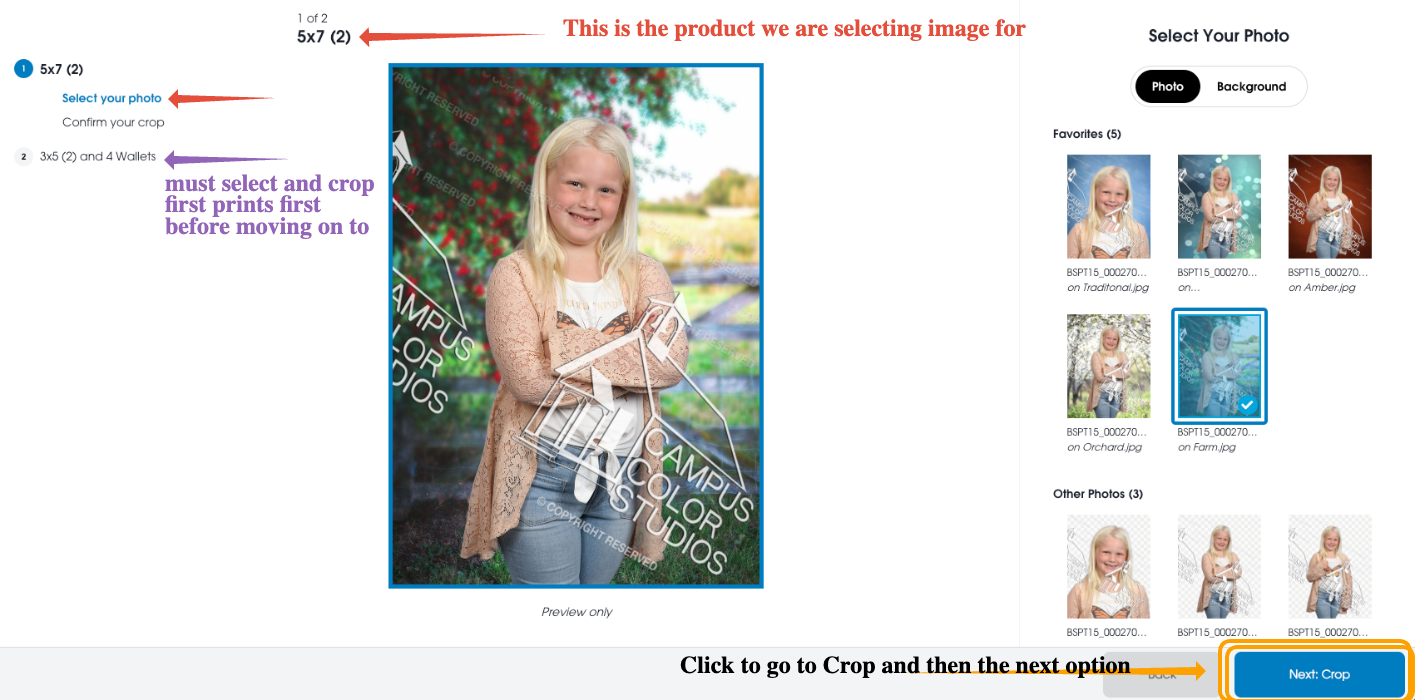
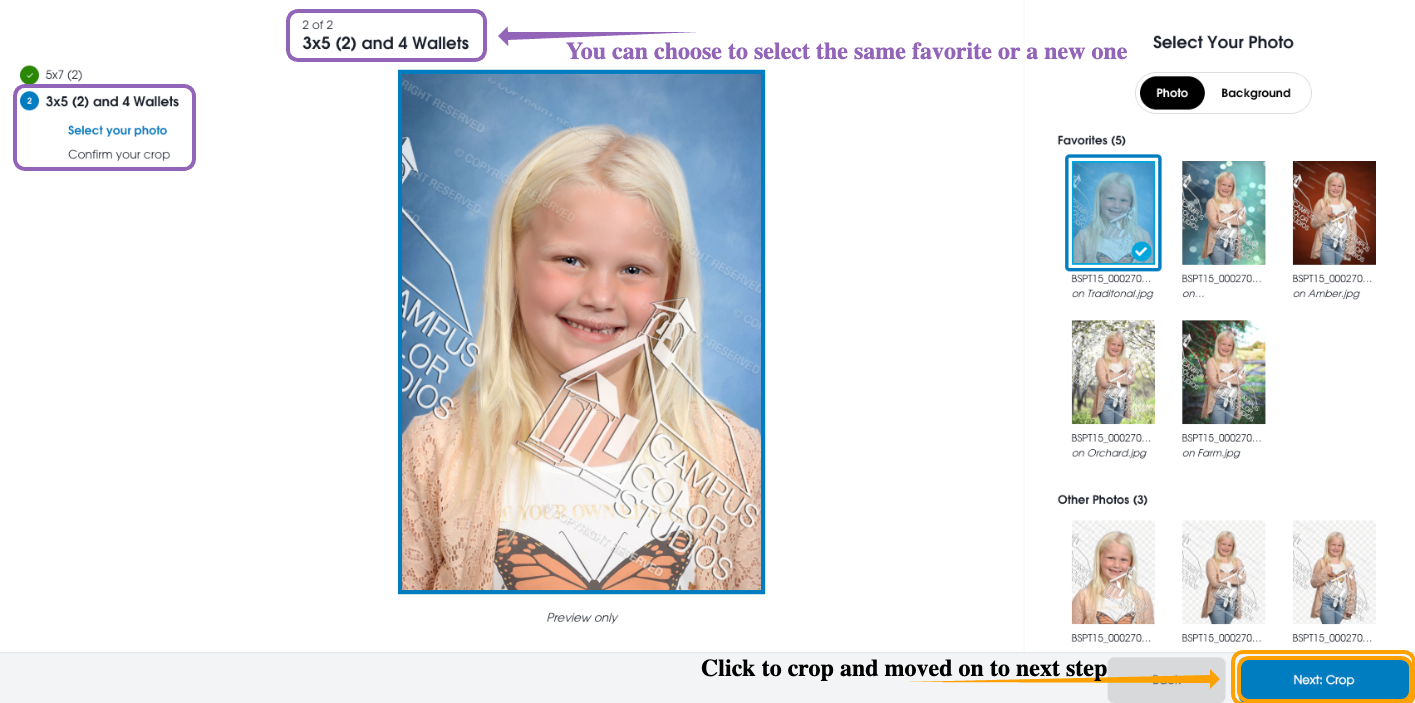
- Your selected product will appear with the image and background you marked as a favorite.
Once your print item is chosen the "Select your photo" will auto populate the first item to choose your image with the desired background.
- Finalize Your Selection
Use this method to easily select and preview images with your chosen background for each product.
Cropping & Adjustments (General Reminder)
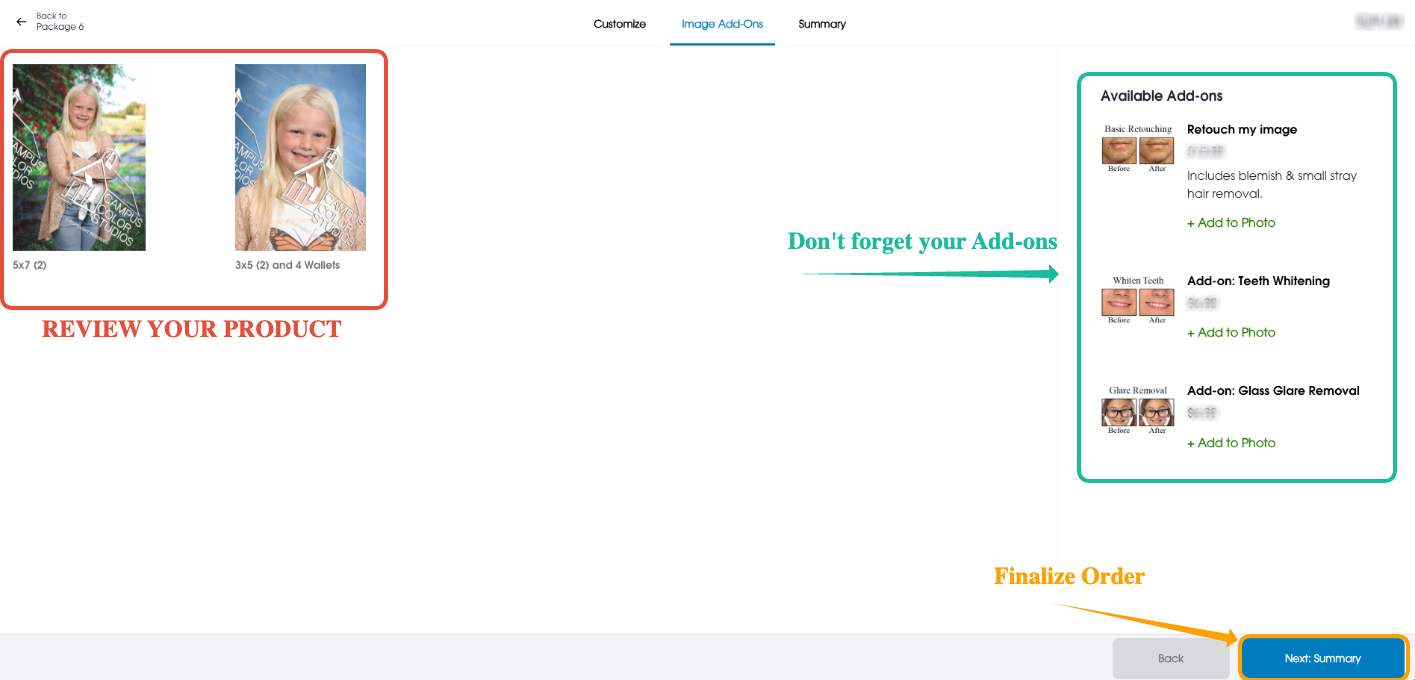
5. Review Your Image
- Double-check your selected pose and background to ensure it's correct.
- You can always review your cart before checking out to ensure all are correct. You can refresh the page when you are in your cart to ensure no duplicate happened.
Ready to create stunning, customized memories? Let's turn your favorite images into lasting treasures!
If you have any questions or need assistance, feel free to contact us.
We're here to make your ordering experience seamless and delightful.
Cheers to capturing the perfect moments!